The best automated process I ever built was actually rubbish
It was a long time ago, but I’d designed what I thought was a genuinely clever solution - an asset request process that would assign a device from the stockroom, task a build engineer to configure and ship it, then automatically update the asset register to mark it as deployed to the user.
The trouble was, the build engineers kept skipping that last step. They’d do the hard work - the building, the configuring, the shipping - but the admin? Not so much. So I updated the automation to handle it for them. The system would randomly select a device from stock, include that specific serial number in the engineer’s task, and then automatically update the asset register once the job was done.
In hindsight, it’s embarrassingly obvious what happened next. Those engineers didn’t bother hunting down the randomly assigned device. They just grabbed whatever was nearest - top of the pile, closest to the door, easiest to reach. So while the automation was diligently updating the asset register, it was recording completely the wrong devices. The register and reality drifted further and further apart.
The Problem with Single-Input Forms
Most automated processes make a big assumption: that you know everything you need before the workflow even starts.
Traditional forms work fine when that’s true. But real processes rarely are that clean. A new device request needs someone to confirm which device was actually picked. A new employee workflow needs input from HR, IT, and a line manager - at different times, in different order. A single upfront form can’t handle that gracefully. You end up with long, complicated forms that require a lot of context switching, or worse - a fragile flow that breaks the moment reality doesn’t match the bad assumptions made at design and build time.
Adaptive Cards solve this. They let you ask questions at exactly the right moment in a process, inside Teams, without anyone leaving the conversation.
“What Are Adaptive Cards?”
Adaptive Cards are interactive UI components, authored in JSON, that render natively inside Microsoft Teams. They’re not bots, and they’re not forms in a separate tab - they appear inline in a chat, a group message, or a channel post, and they support real input controls: text fields, dropdowns, date pickers, toggle switches, and action buttons.
The card JSON is yours to own and edit. Microsoft provides a visual designer at adaptivecards.microsoft.com/designer where you can build and preview cards before dropping the JSON into your flow.
A card is made up of controls, such as:
- TextBlock - for labels, headings, and descriptive text
- Input - the actual input controls (text, choice set, date, toggle, number)
- Action - buttons that submit the card or open a URL
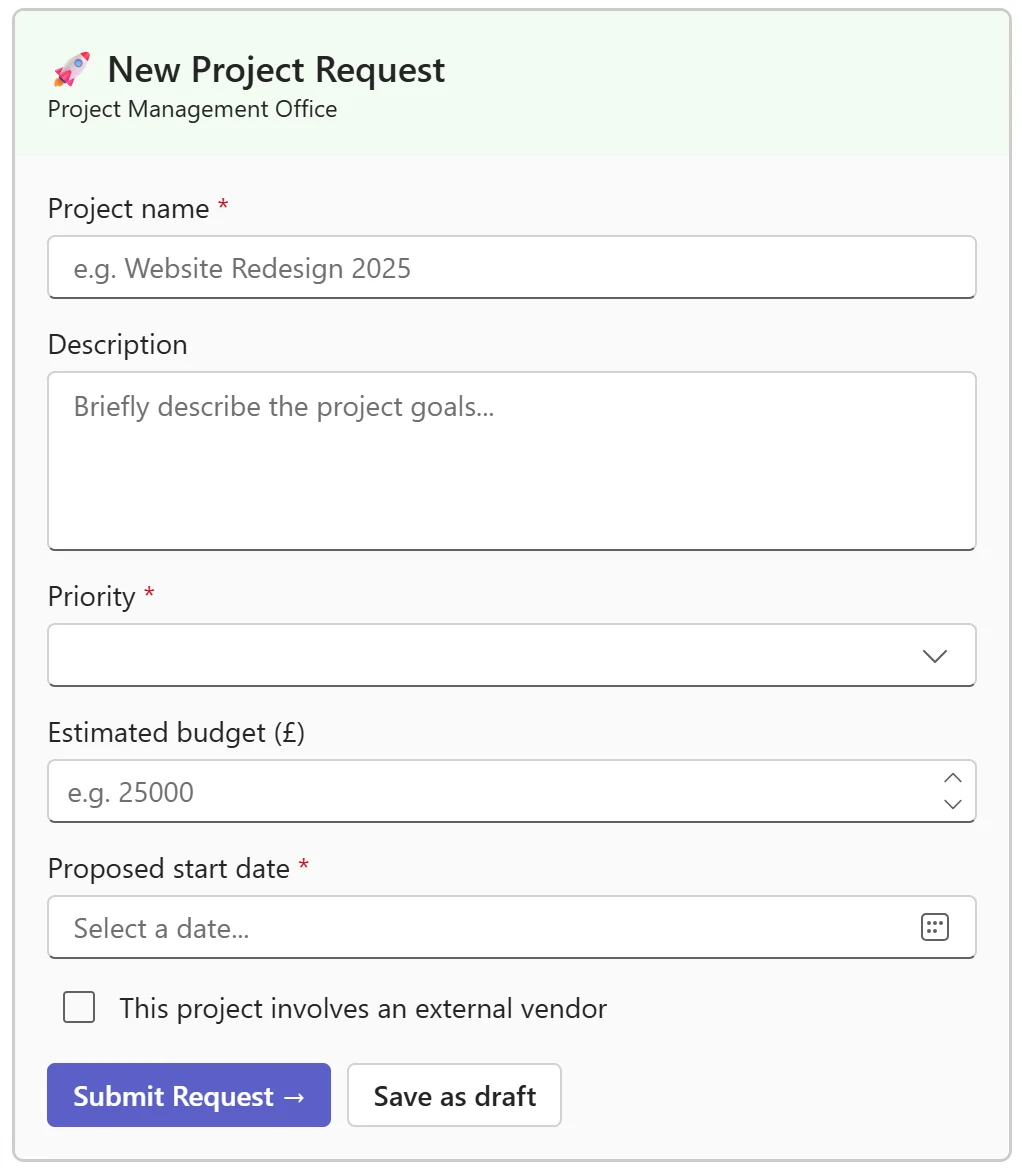
Once someone submits a card in Teams, the response comes back into your Power Automate flow tied to the person who answered - no anonymous guessing, no asking for an email address.
“Sending and Receiving with Power Automate”
Power Automate has built-in actions for Adaptive Cards under the Teams connector. The high level steps look like this:
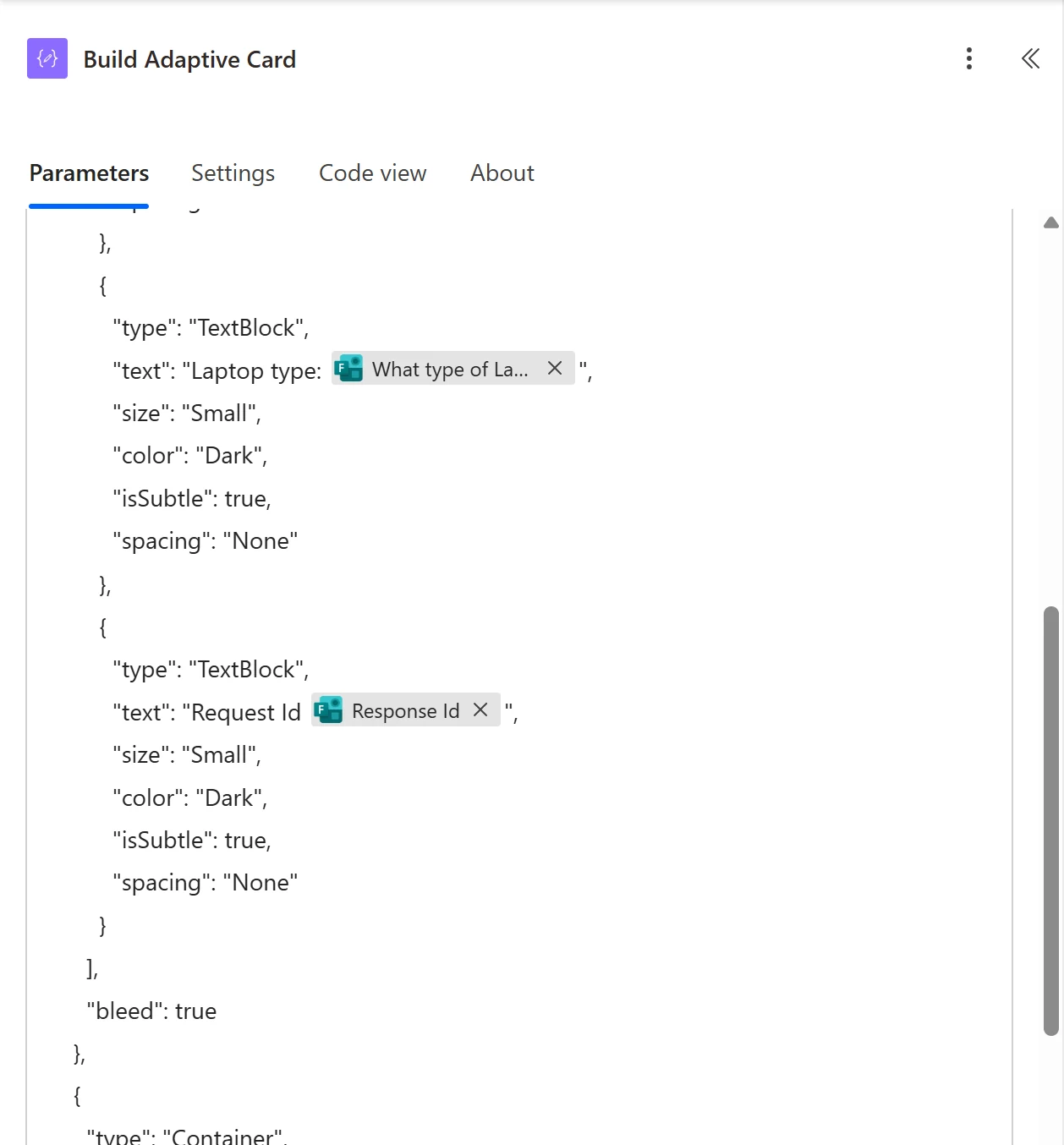
- Build the card - you can pass the card JSON directly into the sending action, but it is a nice idea to build it with a
Composeseparately first to keep that action clean. You can build the Card JSON statically, or construct it dynamically using expressions to pre-populate fields with data already in the flow.
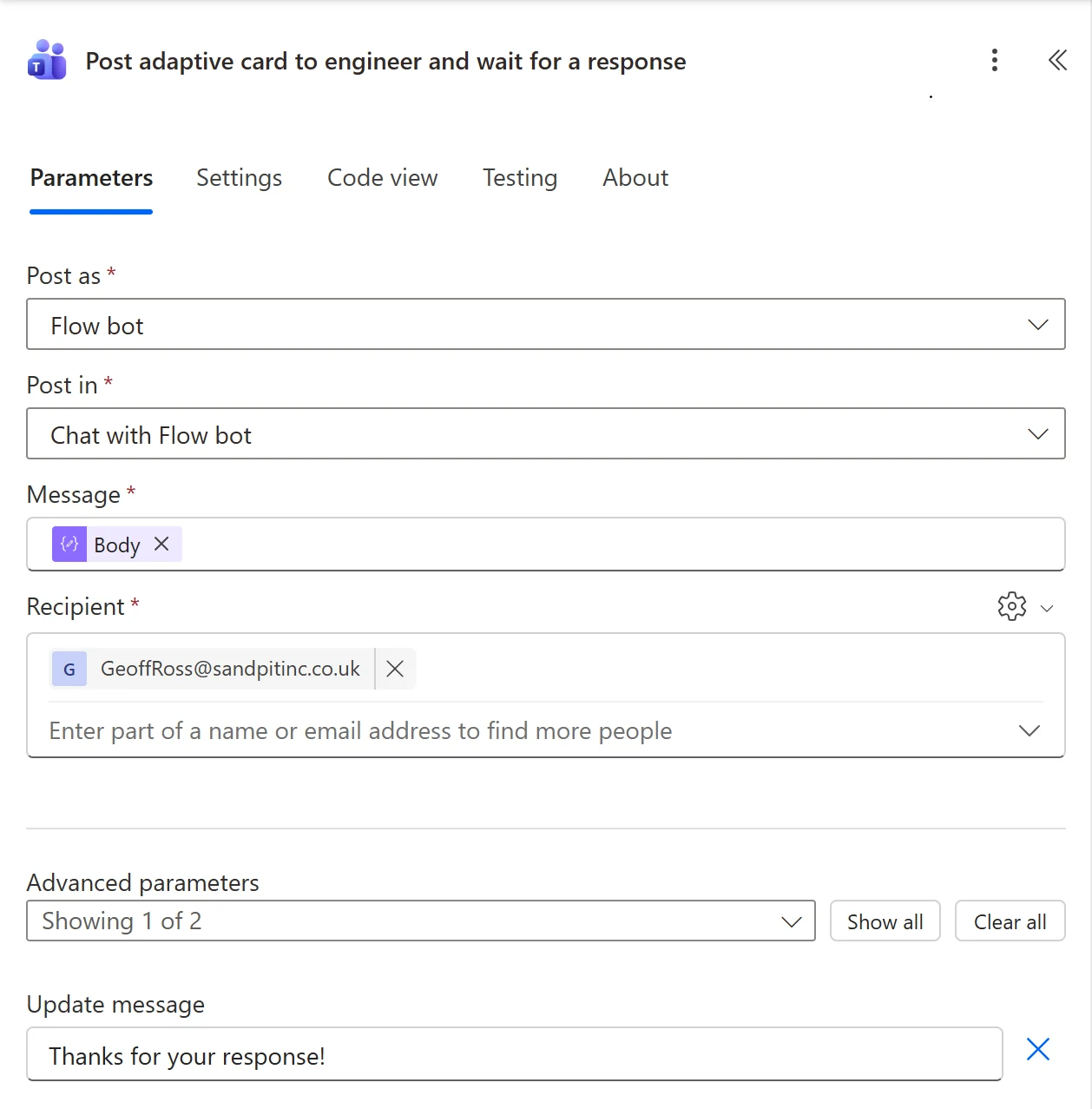
- Post an Adaptive Card and wait for a response - this action sends your card JSON to a user (or a chat or channel) and pauses the flow until they respond.
- Handle the response - once the user submits, the outputs of that action contain everything they entered. You reference these outputs in subsequent steps just like any other dynamic content.
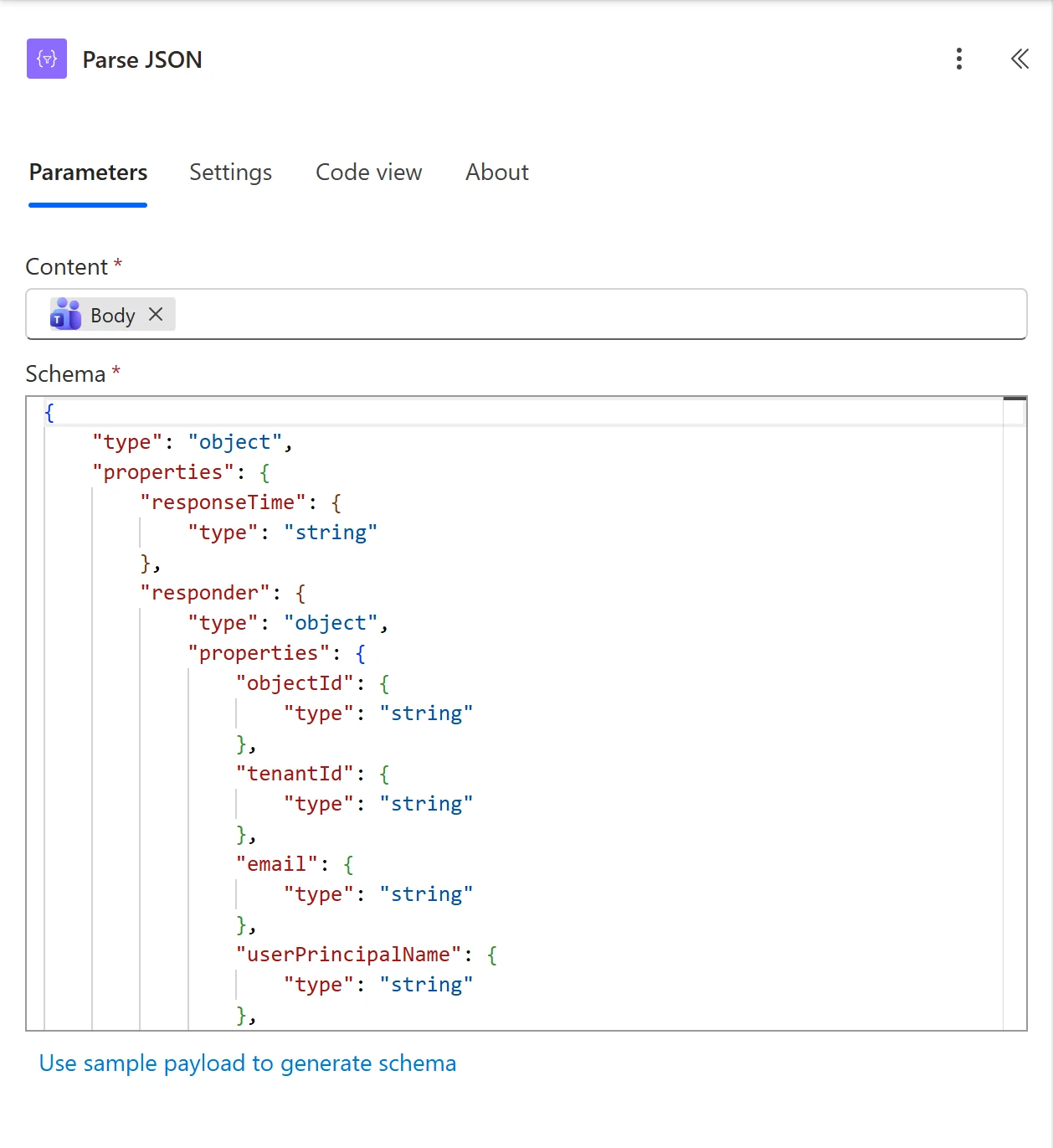
- Update the card - optionally, you can replace the card in the conversation with a confirmation card, so the user sees their response acknowledged rather than a dead button sitting there.
The key thing that makes this powerful: you can do this at any point in a flow, not just at the start. A card can appear after an approval, after a lookup, after a condition - anywhere you need a human in the loop.
“Demo One: Device Request”
Lets’s redo the example from above with the request for a new device. At a certain point in the process, once the device gets picked by the engineer and shipped the asset status should be set to Deployed. We don’t know what device they will select so we need to ask… with an Adaptive Card.
To use an Adaptive Card mid-flow, the process looks like this:
- Request is raised and approved upstream - your flow handles that however it already does.
- At the point where a device needs to be assigned, the flow sends an Adaptive Card to the technician. The card contains a choice set (dropdown) of available devices, pre-populated from your data source.
- The technician picks the device and submits.
- The flow captures the response, updates the selected asset record status to Deployed, and relates the selected device to the request.
The card only appears when it’s needed and the technician doesn’t need to go to another system - they pick from the card in Teams and move on.
[Add screenshot of the device request card here]
“Demo Two: New Employee Workflow”
A new employee workflow is a great showcase for multistep card input, because onboarding genuinely involves multiple people doing different things at different times.
The flow sends cards to different people at different stages:
- HR receives a card to confirm employment details - start date, job title, department.
- IT receives a card once HR has responded - asking for hardware requirements and system access needed.
- The line manager receives a card once IT provisioning is underway - asking them to confirm the new starter’s first-week schedule or any team-specific onboarding tasks.
Each card is triggered by the completion of the previous step. Nobody gets asked for information before it’s relevant, and nobody has to chase anyone - the flow does that.
Responses from each person flow back into the process, and you can use them to drive downstream actions: provisioning requests, calendar invites, welcome emails, or whatever your onboarding process involves.
[Add screenshot of the new employee card sequence here]
“The Pattern to Take Away”
Adaptive Cards and Power Automate work well together because they solve different halves of the same problem. Power Automate handles the logic - routing, conditions, data writes, integrations. Adaptive Cards handle the human moments - the points in a process where you need a person to make a decision or provide information you couldn’t have up front.
The pattern is always the same:
- Use Post an Adaptive Card and wait for a response where you need human input
- Build your card JSON in the designer, then paste it into a Compose action
- Use the response outputs as dynamic content in the steps that follow
- Optionally send a confirmation card to close the loop with the user
Put the question in the place the work already is - inside Teams - and you remove the friction that makes people ignore automated processes in the first place.
“Where to Go Next”
The slides and example card JSON from my Commsverse 2026 session are on GitHub if you want something to start from:
🔗 github.com/geoffross/Commsverse2026
The Adaptive Cards designer is at:
🔗 adaptivecards.microsoft.com/designer
Pick a process you already have running and find the first moment where someone has to go somewhere else to give you information. That’s your first card.